What you'll learn
- What a bundler turns your source files into before they reach the browser
- Tree shaking, code splitting, lazy loading and Suspense, and how they differ
- Why a tab opened before a deploy can request files that no longer exist
- How hashed filenames and cache headers change what the browser sees
- Deployment and error-handling patterns that keep existing users working
Have you ever deployed a new version of your React application, only to discover that some users are experiencing errors while others are using the application without any problems?
Sometimes, the user sees a blank screen. Sometimes, navigating to a specific page causes the application to crash. And sometimes, everything starts working again as soon as the user refreshes the page.
At first, this might look like a React rendering issue. However, the problem can be much deeper than that.
To understand why this happens, we need to look beyond React components and explore how our applications are built, how JavaScript is delivered to the browser, and what happens to an application that is already running when we deploy a new version.
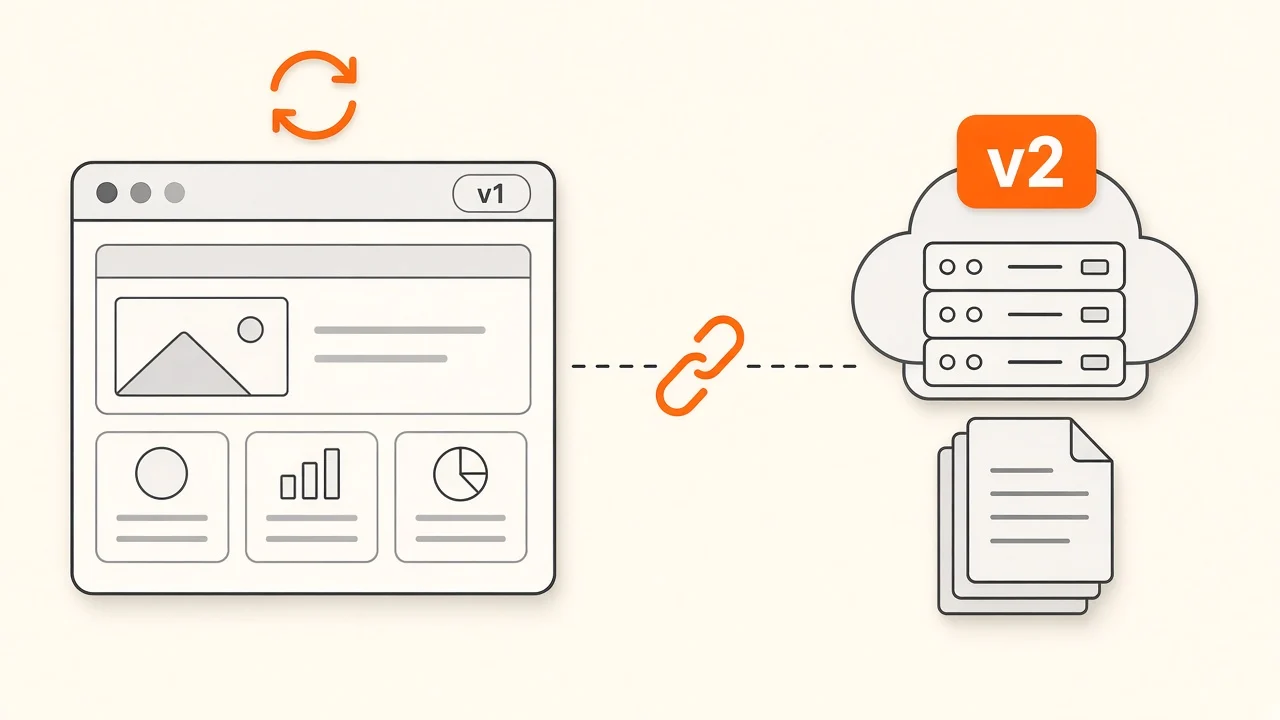
What happens to our code before it reaches the browser?
When we develop a React application, we usually work with many different files. We have components, hooks, utility functions, libraries, styles, and assets. These files depend on one another, forming a dependency graph.
For example, a dashboard component might import a chart component, which imports a charting library. The dashboard may also depend on several hooks and utility functions.
The browser does not need our entire development environment. It needs the code and assets required to run the application.
This is where a bundler comes in.
Tools such as Webpack, Vite, and Turbopack help process our application for production. Depending on the tool and configuration, they resolve dependencies, transform code, optimize assets, and generate files that the browser can download and execute. The Frameworks guide compares the build tools that ship with each React setup.
These generated files are often called bundles or chunks.
A simplified build might produce something like this:
src/
├── App.tsx
├── components/
├── pages/
└── utils/

          ↓ Build process

dist/
├── index.html
└── assets/
    ├── main-a81f.js
    ├── dashboard-b72c.js
    ├── settings-c93d.js
    └── main-d41e.css
From source files to build output
Your source
- App.tsx
- components/
- pages/
- styles.css
Bundler: Webpack, Vite (Rollup) or Turbopack
- 1Resolve the dependency graph
- 2Transform TS and JSX
- 3Tree shake unused exports
- 4Split into chunks
- 5Minify and hash file names
Build output (dist/)
- index.html
- main-a81f.js
- dashboard-b72c.js
- settings-c93d.js
- main-d41e.css
The filenames are illustrative, but the idea is important: the files running in production are build outputs, not necessarily a direct copy of our source files.
Understanding this is the first step toward understanding what can go wrong during deployment.
Key takeaway
Production runs the files the bundler generated, not your src folder. Every deployment produces a new set of those files.
Tree shaking: removing code we do not use
Modern applications often depend on libraries that provide much more functionality than we actually need.
Imagine importing a utility library that contains dozens of functions when our application uses only two of them. Including all that unused code increases the amount of JavaScript the browser may need to download and process.
Tree shaking helps address this problem.
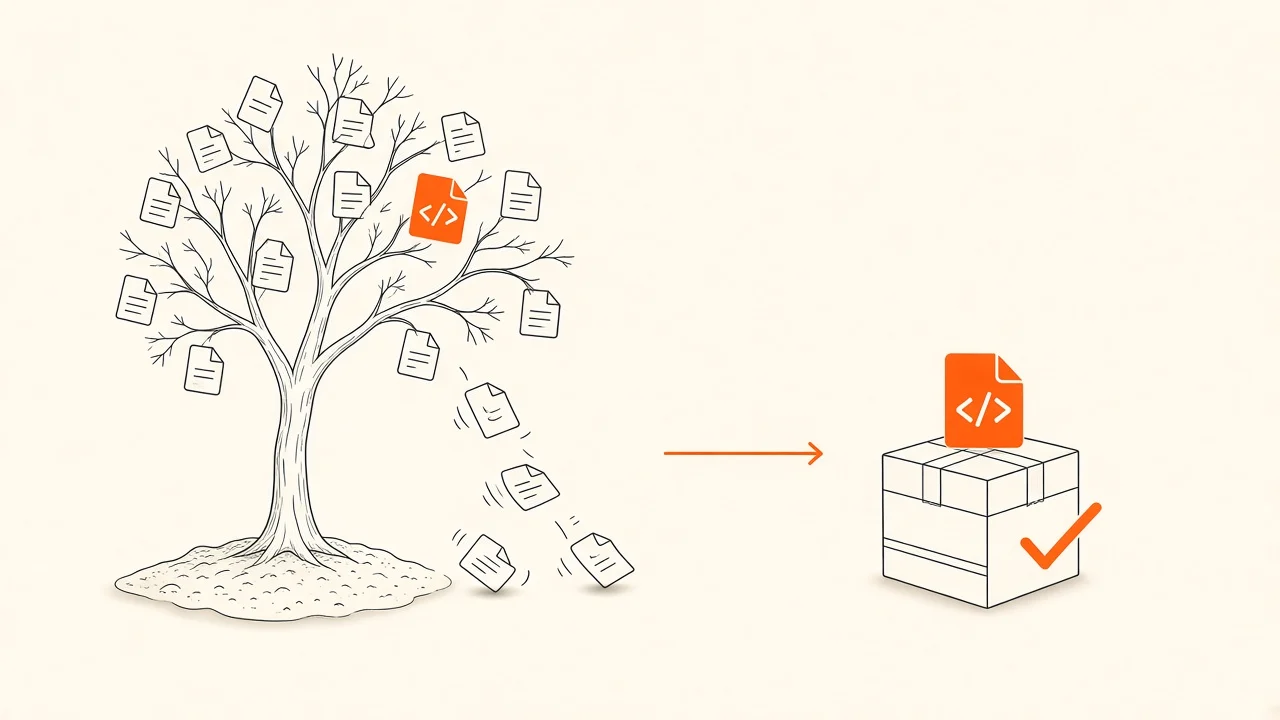
It is a build-time optimization that allows a bundler to eliminate code that can be determined to be unused. It works particularly well with statically analyzable ES module imports and exports.
For example:
// utilities.js
export function formatDate(date) {
  return new Date(date).toLocaleDateString()
}

export function calculateTotal(items) {
  return items.reduce((total, item) => total + item.price, 0)
}

export function debugApplication() {
  console.log('Debugging...')
}
If our application imports and uses only formatDate, a production build may eliminate the other unused exports, depending on the bundler and whether it can safely prove they are unnecessary.
Tree shaking keeps only what is imported
utilities.js exports
- formatDateused
- calculateTotal
- debugApplication
App.tsx
import { formatDate }
  from './utilities'
Static ES module imports let the bundler see exactly what is used.
Production bundle
- formatDateshipped
calculateTotal and debugApplication were removed: less JavaScript to download and parse.
The benefit is straightforward: less unnecessary JavaScript can mean smaller downloads and less work for the browser. Bundle Size Optimization goes deeper into the import patterns that help or block it.
However, tree shaking does not solve every bundle-size problem, and it is not a deployment recovery mechanism. It changes what goes into a build, not how existing browser sessions transition to a new build.
That distinction becomes important when we talk about code splitting.
Checkpoint
Which statement about tree shaking is true?
Pick an answer, or press A, B, C on your keyboard.
Bundles, chunks, and lazy loading
Imagine an application with a dashboard, reports page, settings page, and administration panel.
If all the code for every page is included in one large JavaScript file, the browser may need to download and process code for features the user does not immediately need.
Code splitting allows us to divide the application into smaller pieces that can be loaded separately.
Instead of shipping every page in one bundle, a build might generate separate chunks for the dashboard, reports, and settings pages.
Lazy loading allows us to load some of those chunks only when they are needed.
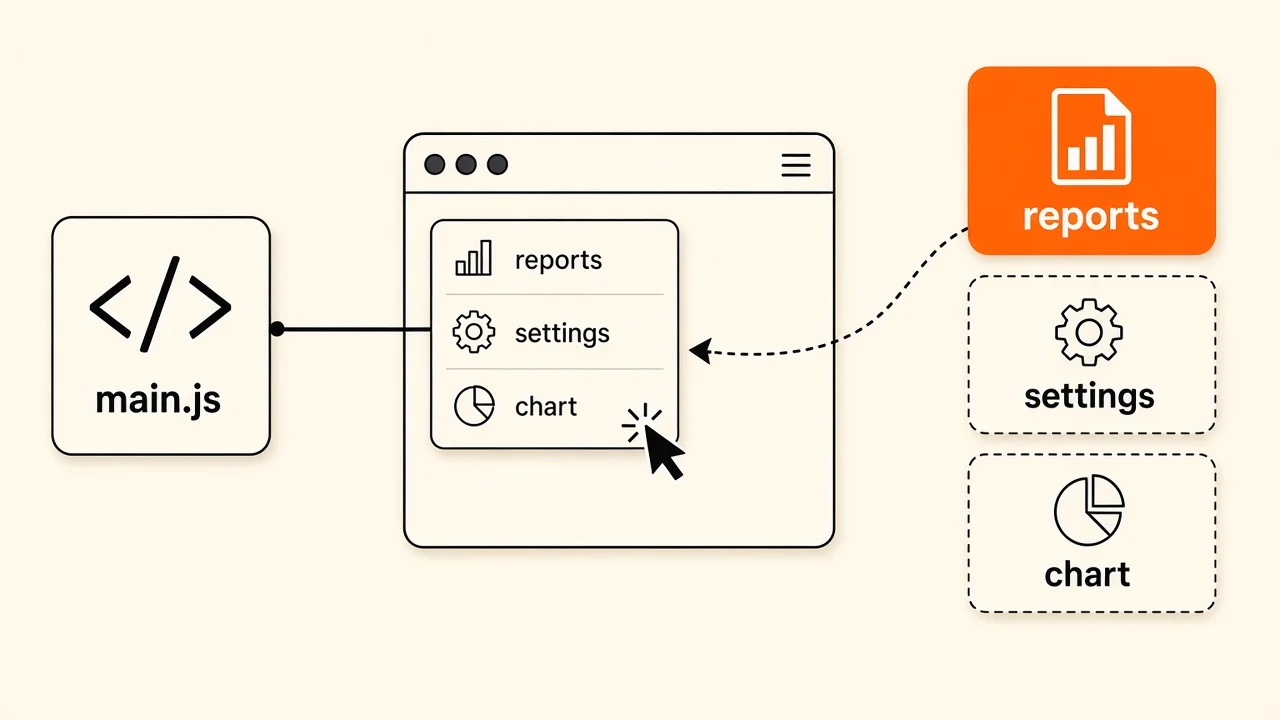
In React, we can use React.lazy() with a dynamic import:
import { lazy, Suspense } from 'react'

const ReportsPage = lazy(() => import('./ReportsPage'))

function App() {
  return (
    <Suspense fallback={<p>Loading reports...</p>}>
      <ReportsPage />
    </Suspense>
  )
}
Here, import("./ReportsPage") allows the bundler to create a separate chunk in a typical production build. React can then wait for the lazy component's code to load before rendering it.
The Suspense fallback gives the user something to see while that work is pending.
There are three related but different responsibilities here:
- Code splitting divides code into separate chunks.
- Lazy loading delays loading some code until it is needed.
- Suspense allows React to display a fallback while a supported dependency is pending.
One entry bundle, chunks on demand
Loaded at startup
main-a81f.js
React, router, app shell
user opens /dashboard
dashboard-b72c.js
user opens /reports
reports-e41a.js
user opens /settings
settings-c93d.js
These techniques help us avoid loading everything upfront, but they introduce an important consideration: the application may need to download additional files long after the initial page has loaded. React Performance Optimization covers when lazy loading is worth it in the first place.
What happens if one of those files is no longer available?
Checkpoint
What makes ReportsPage end up in its own file?
Pick an answer, or press A, B, C on your keyboard.
The real problem: a new deployment meets an old browser session
Let's walk through a realistic scenario.
A user opens our application at 10:00 AM. The browser downloads the HTML and JavaScript files for version A.
The application starts successfully, and the user continues working. Perhaps they leave the dashboard open for several hours without refreshing the page.
At 11:00 AM, we deploy version B.
The new version contains updated JavaScript files, including a renamed or newly generated chunk for the reports page.
If the deployment removes the old files immediately, the user's browser may still be running code from version A. When the user opens the reports page, that old code may try to load a chunk belonging to version A.
But the server now has only the assets for version B.
The request fails.
Depending on the application and the error-handling setup, the user might see a chunk-loading error, a broken route, or an error screen.
This is one reason a deployment can appear successful while some existing users experience problems.
Consider the following timeline:
Version skew: an old tab meets a new deployment
10:00
Browser tabRelease A
User opens the app and loads main-A.js
ServerRelease A
Serves release A
10:30
Browser tabRelease A
User keeps working. No refresh.
ServerRelease A
Release A still live
11:00
Browser tabRelease A
Still running release A code in memory
ServerRelease B
Release B deployed. Old A chunks deleted.
11:15
Browser tabRelease A
Opens Reports, so the old code asks for
reports-A.jsGET reports-A.jsServerRelease B
404 Not Found, then ChunkLoadError in the tab
The exact failure depends on how the application is built and deployed. If the old chunk remains available, the request may succeed. If the application does not request another chunk, the deployment may have no immediate effect on that session.
The important point is that the browser can continue running an older version of an application even after the server has been updated.
A deployment does not automatically replace every JavaScript module already loaded into every open browser tab.
Predict the output
A tab opened release A at 10:00 and visited Reports at 10:30. Release B is deployed at 11:00 and every A file is deleted. What happens at 11:15 and 11:20?
const Reports = lazy(() => import('./Reports')) // reports-A.js
const Settings = lazy(() => import('./Settings')) // settings-A.js

// 10:00  tab loads release A (main-A.js)
// 10:30  user opens Reports, reports-A.js is downloaded
// 11:00  release B is deployed, every A file is deleted
// 11:15  user opens Reports again
// 11:20 user opens Settings for the first timePick an answer, or press A, B, C, D on your keyboard.
Why does refreshing the page sometimes fix it?
When the user refreshes, the browser requests the application entry point again.
If the deployment is healthy and the caching configuration allows the browser to discover the new version, it receives the current HTML and asset references.
The browser then loads the files belonging to version B instead of continuing to execute the old application code from version A.
That is why a refresh can appear to fix the problem.
However, refreshing is not a universal solution. If the new deployment is broken, the server is unavailable, or the application has an incompatible API contract, reloading may not help.
We should treat a refresh as a possible recovery mechanism, not as the actual fix for every deployment problem.
Try it below. Open the app, visit Reports, deploy, and then try both pages in the old tab. Then switch on "Keep old assets" or the error handler and run the same steps again.
Try it: deployment simulator
Open the app, visit Reports, deploy a new release, then keep using the old tab. Reports still works because its chunk is already loaded. Settings is a different story.
Browser tab
No tab open yet. Press “Open app”.
Server /assets
live A- A
- main-a81f.js
- reports-e41a.js
- settings-c93d.js
Event log (newest first)
- Nothing yet. Start with “Open app”.
Key takeaway
A refresh works because it throws away the old release in the tab and starts again from a fresh index.html. It does not repair anything on the server.
How do caching and hashed filenames affect this?
Production builds commonly generate filenames containing a content hash:
main-a81f.js
main-b72c.js
When the content changes, the generated filename usually changes too. This allows the browser and CDN to cache versioned assets for a long time without confusing one version with another.
A common caching strategy is:
- Hashed JavaScript and CSS assets: cache for a long time, often with
Cache-Control: public, max-age=31536000, immutable. - HTML documents: use revalidation or a short cache lifetime so clients can discover the latest asset references.
Two kinds of files, two cache policies
HTML entry point
- index.htmlchanges every release
Cache-Control: no-cache
Revalidated on every visit, so a refresh discovers the new release.
Hashed assets
- main-a81f.jsnever changes
- main-d41e.cssnever changes
Cache-Control:public, max-age=31536000,immutable
A new build gets a new name, so a long cache can never serve the wrong version.
The exact policy depends on the application and hosting environment. If your HTML is rendered on a server rather than served as a static file, React Rendering Strategies explains where that HTML comes from, and Update Content Without Redeploying walks through the other cache layers that can serve an old copy.
But hashed filenames introduce a deployment requirement: if an old HTML document or an already-running application still refers to an old asset, that asset may still be needed.
If we publish the new HTML and immediately delete every old JavaScript chunk, existing sessions can break.
In other words, content hashing helps with cache correctness, but it does not guarantee deployment compatibility by itself.
Checkpoint
Which response should get Cache-Control: public, max-age=31536000, immutable?
Pick an answer, or press A, B, C on your keyboard.
How can we prevent these problems?
The best approach is to design deployments with existing users in mind.
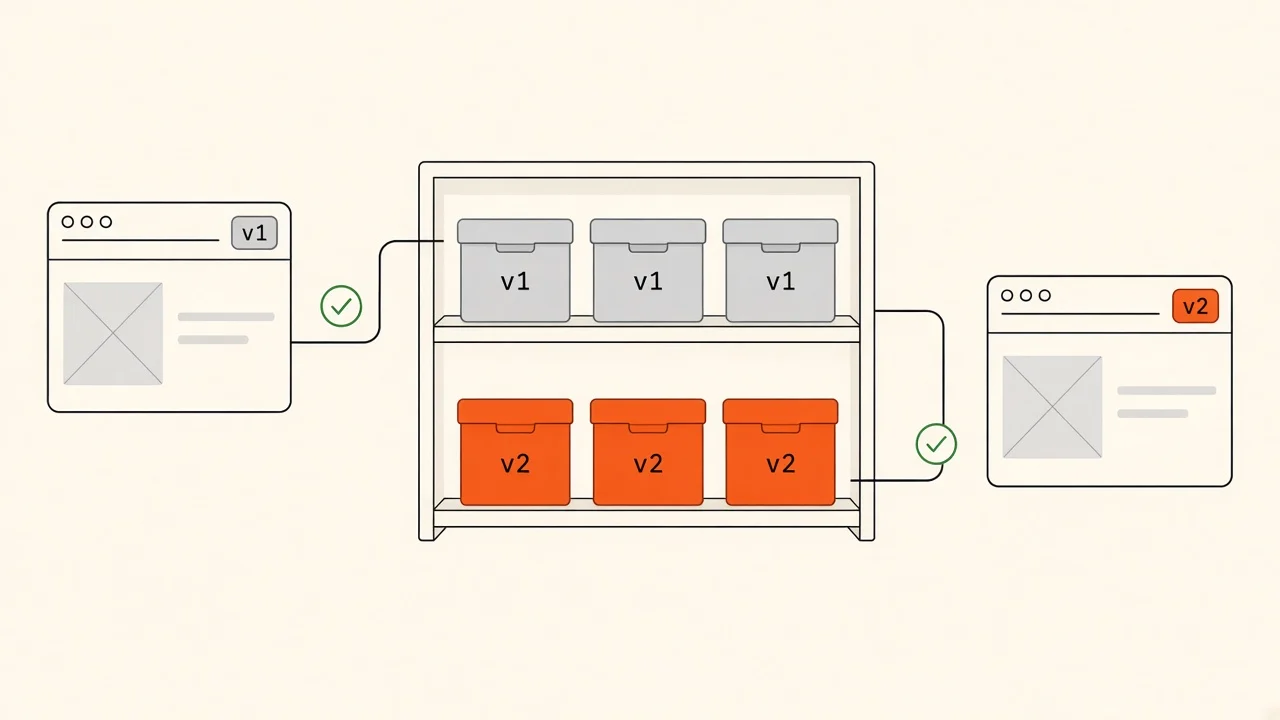
Keep old assets available
Do not delete old JavaScript and CSS files immediately after deploying a new version. Retain previous hashed assets long enough to support users who are still running older versions.
The appropriate retention period depends on how long users keep tabs open, how frequently they return to the application, and the deployment environment.
Deploy assets before referencing them
Upload and verify the new assets before publishing HTML that references them. Where possible, use atomic or release-based deployments so users do not receive a mixture of incomplete releases.
This reduces the risk of the application referencing files that have not yet been published.
For a static site on object storage, the order looks like this:
# 1. Upload the new hashed assets next to the old ones
aws s3 sync dist/assets s3://my-app/assets \
  --cache-control "public, max-age=31536000, immutable"

# 2. Publish the HTML last, so it only points at files that already exist
aws s3 cp dist/index.html s3://my-app/index.html \
  --cache-control "no-cache"
Configure caching deliberately
Long-lived caching is useful for content-hashed assets. HTML needs a different strategy because it points users toward a particular release.
A good caching strategy helps the browser discover new releases without unnecessarily downloading every unchanged asset.
Handle chunk-loading errors
Even with a good deployment strategy, network errors and unexpected failures can happen.
An Error Boundary can prevent some rendering errors from taking down the entire React interface. For failed lazy imports, we can provide a recovery path that informs the user or offers a controlled reload when a new release is available.
However, Error Boundaries do not automatically fix failed network requests. A lazy import may remain rejected, and retrying the same cached failure may not work.
A robust implementation should distinguish a likely stale-build problem from ordinary network failures, avoid infinite reload loops, and ensure that a successful reload actually loads the intended release.
Here is one way to do that. lazyWithReload reloads the page once when a chunk fails to load, and remembers the attempt in sessionStorage so a broken release cannot trap the user in a reload loop:
import { lazy } from 'react'

const RELOAD_KEY = 'chunk-reload-at'

function isChunkLoadError(error) {
  const message = error?.message ?? ''
  return (
    error?.name === 'ChunkLoadError' ||
    /Loading chunk .+ failed|Failed to fetch dynamically imported module|Importing a module script failed/i.test(message)
  )
}

export function lazyWithReload(factory) {
  return lazy(async () => {
    try {
      const module = await factory()
      sessionStorage.removeItem(RELOAD_KEY)
      return module
    } catch (error) {
      const lastReload = Number(sessionStorage.getItem(RELOAD_KEY) ?? 0)
      const reloadedRecently = Date.now() - lastReload < 10_000

      if (isChunkLoadError(error) && !reloadedRecently) {
        sessionStorage.setItem(RELOAD_KEY, String(Date.now()))
        window.location.reload()
        return new Promise(() => {})
      }
      throw error
    }
  })
}If the reload already happened and the chunk still fails, the error is thrown to the nearest Error Boundary, which can show a calm message instead of a blank screen:
import { Component, Suspense } from 'react'

class ChunkErrorBoundary extends Component {
  state = { error: null }

  static getDerivedStateFromError(error) {
    return { error }
  }

  render() {
    if (!this.state.error) return this.props.children
    return (
      <div role="alert">
        <p>This page could not be loaded. A newer version may be available.</p>
        <button onClick={() => window.location.reload()}>Reload</button>
      </div>
    )
  }
}

const ReportsPage = lazyWithReload(() => import('./ReportsPage'))

function App() {
  return (
    <ChunkErrorBoundary>
      <Suspense fallback={<p>Loading reports...</p>}>
        <ReportsPage />
      </Suspense>
    </ChunkErrorBoundary>
  )
}You may not need to write all of this yourself. Several tools ship their own version of it.
Vite dispatches a vite:preloadError event on window when a dynamic import fails to load. You can listen for it and reload. In production, add the same sessionStorage guard as above so a broken release cannot cause a reload loop:
window.addEventListener('vite:preloadError', () => {
  window.location.reload()
})
Next.js detects version skew when you set a deploymentId in next.config.js. When the deployment ID in the browser does not match the server, client navigations fall back to a full page load, so the user lands on the new release instead of requesting old chunks.
// next.config.js
module.exports = {
  deploymentId: process.env.DEPLOYMENT_VERSION,
}
Vercel Skew Protection keeps previous deployments reachable for a configurable period and routes requests from an old tab to the deployment that tab was loaded from. That is the "keep old assets available" strategy, managed by the platform.
Maintain compatibility between frontend and backend
Not every production failure is caused by JavaScript chunks.
Imagine the new frontend expects an API field that the backend does not provide yet. Reloading the browser will not necessarily solve the issue.
For systems where frontend and backend deployments happen independently, backward-compatible API changes and appropriate release coordination are equally important.
Key takeaway
Keep old assets, publish HTML last, cache HTML and hashed files differently, and give lazy routes a recovery path. Each one covers a gap the others leave open.
Where do React and the bundler fit into the solution?
It is useful to separate the responsibilities of each layer.
React manages component rendering, lazy component loading, Suspense boundaries, and rendering error recovery.
The bundler generates optimized assets and determines how modules are grouped into bundles and chunks.
The browser and CDN handle asset requests and caching.
The deployment infrastructure determines when new files become available, how releases are published, and whether previous assets remain accessible.
Who is responsible for what
React
- Rendering components
- lazy() and Suspense fallbacks
- Error Boundaries
Cannot: Restore a chunk that was deleted from the server
Bundler
- Grouping modules into chunks
- Tree shaking
- Hashed file names
Cannot: Decide how long old files stay online
Browser and CDN
- Requesting assets
- Caching responses
- Keeping old code running in a tab
Cannot: Swap the code in an open tab for a new release
Deployment
- Publishing a release atomically
- Retaining previous assets
- Ordering assets before HTML
Cannot: Fix a frontend that expects an API the backend lacks
No single layer can solve the entire problem on its own.
For example, adding Suspense can improve the loading experience, but it does not ensure that a requested chunk exists on the server. Adding an Error Boundary can contain a rendering failure, but it does not restore a deleted JavaScript file.
Preventing these problems requires the build process, caching strategy, and deployment workflow to work together.
Conclusion
When we build a React application, it is easy to focus on components, hooks, rendering performance, and bundle size. These are important, but they are only part of the story.
A production application is also a collection of generated assets delivered through browsers, servers, and CDNs. Users may keep an older version running while we deploy a newer one, and that difference can expose problems that never appear during local development.
Tree shaking helps remove unused code. Code splitting and lazy loading help control when code is downloaded. Suspense helps manage waiting for supported asynchronous work. But none of these techniques, by themselves, guarantees that a deployment will be safe for every active user.
A reliable frontend needs more than an optimized build. It needs a deployment strategy that accounts for users who are already there.
The key takeaway
The goal is not just to deploy a new version successfully. It is to make sure that users can continue using the application while that new version is being released.
Check your understanding
What does a bundler such as Webpack, Vite or Turbopack produce for the browser?
Pick an answer, or press A, B, C on your keyboard.
Recap
What to remember from this article
Sections read
0
Questions
0
none answered yet
Quiz
0
not taken yet
Up next: JavaScript Performance Patterns · 4 min
Continue